Can You Edit Videos in Illustrator? A Detailed Look
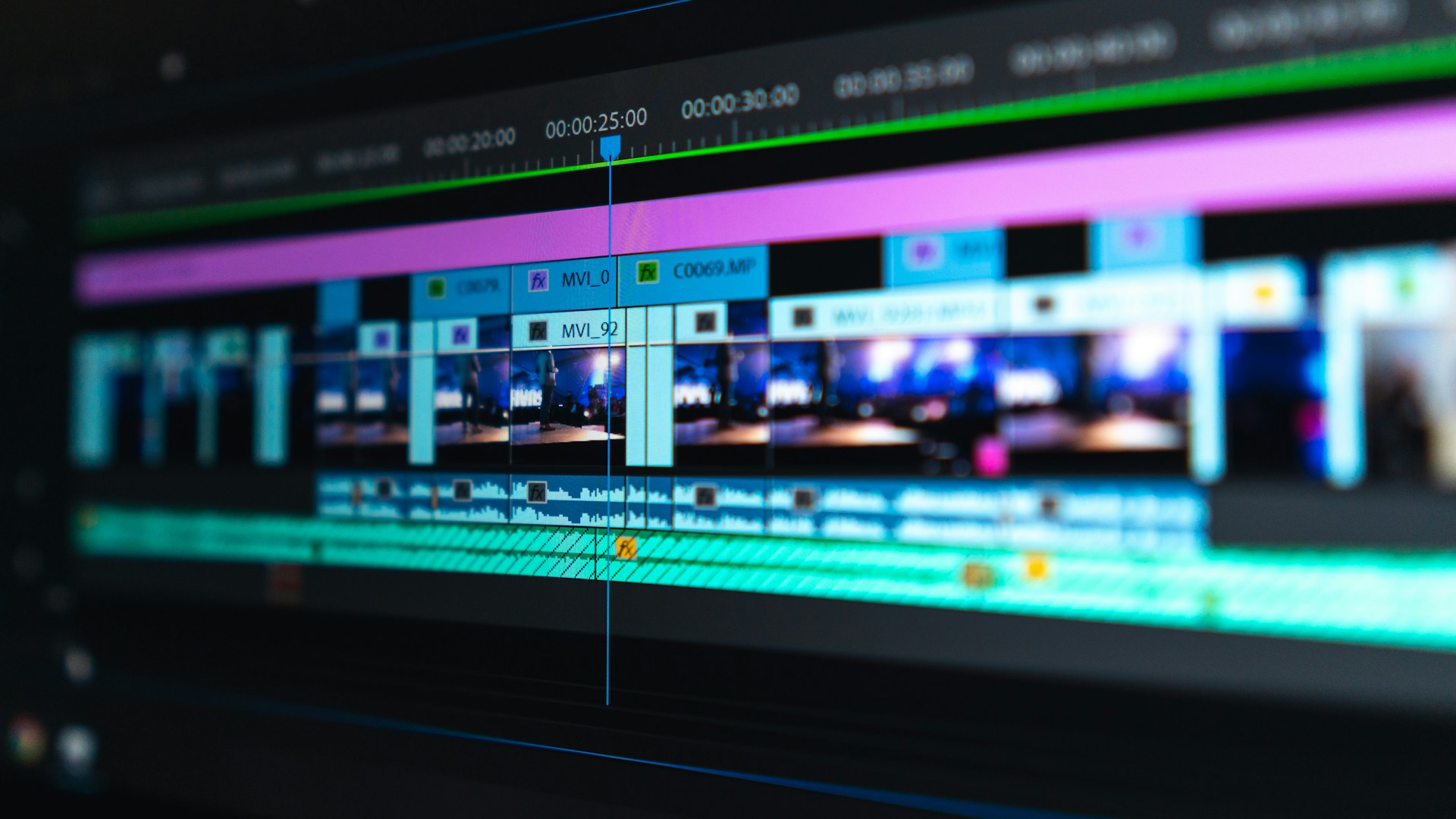
Table of Contents
Editing videos in Adobe Illustrator is an unconventional approach that leaves many wondering whether it’s feasible. The answer? Not really. Illustrator is primarily a vector graphics editor designed for creating illustrations, graphics, and logos. While it has some features that may allow for basic frame-by-frame animation or GIF creation, it’s not equipped for professional video editing tasks. If you’re serious about video editing, you should consider other dedicated software.
Bottom Line: Use Illustrator for Graphic Work, Not Video
If you’re looking to create intricate graphics or illustrations for your video, Adobe Illustrator is an excellent tool. However, if your goal is to edit videos—cutting scenes, adding effects, or syncing audio—you’ll want to opt for dedicated video editing tools like Adobe Premiere Pro, Final Cut Pro, or even AI-driven solutions like Descript that focus primarily on video manipulation. Illustrator totals around $20.99/month as part of the Adobe Creative Cloud, while Premiere Pro is closer to $20.99/month as well, making for a well-rounded choice given the diverse needs of creators.
What Illustrator Can Do
Although Illustrator isn’t designed for video editing, it does have animation capabilities via the “Timeline” feature, allowing users to create simple animations. Here are some of the features relevant to animation:
- Transform tools: These allow for movements and simple animations of objects.
- Artboards: You can create multiple artboards for different frames of your animation.
- Asset Export: Saves your graphics in video-friendly formats.
Limitations of Editing Videos in Illustrator
-
No Video Track Support: Illustrator lacks the concept of video tracks, essential for classic video editing. You can’t layer video files as you would in Premiere Pro.
-
No Audio Control: Unlike dedicated editing software, there’s no way to manage audio files—essential for any video project using voiceover or sound effects.
-
Lack of Effects: You won’t find advanced video effects or transitions that can take your project to the next level.
-
Rendering Issues: Exporting your work as a video can lead to larger file sizes and less efficient processing than dedicated video editors.
Who This is For
-
Graphic Designers: If you’re looking to create graphics, logos, or infographics for videos but aren’t involved in extensive video editing, Illustrator provides tools to assist in that workflow.
-
Animators: Simple animations can be created, but you may find yourself limited on finer controls and options.
Who Should Skip This
-
Video Editors: If your goal is to edit videos in any professional capacity or create complex sequences, skip Illustrator and invest in programs made for video editing.
-
YouTube Creators: If you need to cut, splice, or refine video footage, go with software like Adobe Premiere Pro or DaVinci Resolve.
Alternative Software for Video Editing
Here’s a quick comparison table of programs that focus specifically on video editing:
| Software | Price | Key Features | Best For |
|---|---|---|---|
| Adobe Premiere Pro | $20.99/month | Multi-layer timeline, professional tools, effects | Professional editing |
| Final Cut Pro | $299 one-time fee | Magnetic Timeline, advanced editing features | Mac users |
| Descript | $15/month | Text-based editing, podcast tools | Podcasters and vloggers |
| DaVinci Resolve | Free available | Color correction, advanced editing tools | Professional film work |
| Camtasia | $249 one-time fee | Screen recording, simple editing tools | Tutorials and personal projects |
Conclusion: Choose Wisely
While you can technically make simple animations in Illustrator, it would be a mistake to think of it as a video editing software. Consider your project needs carefully. If you’re a graphic artist in need of illustrations for video, Illustrator can serve you. However, if your main focus is video editing—especially for platform like YouTube, Instagram, or corporate presentations—relying on dedicated video editing software is essential.
Final Recommendation
Go for Adobe Premiere Pro or DaVinci Resolve if you’re serious about creating video content. Both offer comprehensive video editing capabilities, with the former providing seamless integration with Adobe’s ecosystem and the latter being a powerful free option. If you’re a freelancer who switches between projects involving both graphics and video, using Illustrator for graphics and Premiere Pro for editing will deliver the best results.
Don’t waste your time trying to force video editing into Illustrator; embrace the right tools for the job!